Breaking News
Showing posts with label Tricks. Show all posts

Wednesday, 5 February 2014

How to automatically send message to all friends on facebook just in one click ???

Welcome Back Guys , Today I am here with an awesome trick "How to automatically send message to all friends on facebook just in one click ???" It will be very useful for you in promoting , advertising your fanpage etc. anything on facebook .
So now everything is automated with this process and it just includes you to download that script and then add your message that you would like to broadcast to your friends. That’s it within few seconds your whole message will be broadcasted to everyone.
So now guys if you are interested in sending bulk messages to all your friends on facebook then here is an easy way to do so.

Requirements :- Google Chrome or Mozilla Firefox , I'm using Google Chrome , A working internet connection and a facebook account .

1)Open www.facebook.com and Sign-In to your account.

2)Now after Signing-You can do two things here , one is just press F12 in chrome & Ctrl + Shift + K in Firefox to open the Console Tab or right click anywhere on the page and select "Inspect Element" Option and then a rectangular box will appear on the screen just click on the "Console" Tab.


3)Now just copy the whole script provided here in the Link and paste it inside the Console Tab and press Enter.

Download Script

4)Now a new popup windows like below will open, with the text field to write your message and a Post button to send it immediately.

5)Now to confirm that everyone is going to receive your message just open any of your friend using chat system and press Post to see how he will get your message and so do all of your friends will receive the same message in seconds.


Note : Use this script once in a day otherwise facebook will temporary block your messaging service for doing bulk messaging.

So guys now enjoy this awesome trick to send bulk messages to all your friends using simple script, well I think this could surely save you a lot of time in order to greet everyone at the same time or just passing out some serious news, so have fun and EnJoY !

How to get 5,000 facebook friend requests in one day ???
Read more ...

Tuesday, 28 January 2014

How to tag all the friends in comments on facebook / How to Auto Mention Every Friend In Comments on Facebook ???

Welcome Back Guys , Your Jagdeep Gill is back with a new trick "How to tag all the friends in comments on facebook / How to Auto Mention Every Friend In Comments on Facebook ???" 

Well on a facebook post you can't tag your every friend in your post , but isn't it amazing if your every friend is tagged on a post and it will definitely increase the number of likes on your post .

The Requirement for this is Google Chrome , a working internet connection and a facebook account .

So lets start with the tutorial :- 

1) First of all post what you want on facebook , I mean update your status .


2) Now open it in new tab .


3) Right click anywhere on the screen and select "Inspect Element" option .


4) Now a rectangular box will open in front of you .

5) What you have to do is just copy the whole script provided here in the Link and paste it inside the Console Tab and press Enter.

Download Script 


Now Copy This Code and Paste it in the Console box , Just as shown in the image below :-


6) Now Hit Enter and see the magic . 


Enjoy !!!
Read more ...

Sunday, 26 January 2014

How To Share PC Internet on Android Device with USB Data Cable ???

Hello Guys , I'm back with a new trick "How To Share PC Internet on Android Device with USB Data Cable ??? "As you all know about Tethering in your Android SmartPhone. Tethering is the technique to share internet from your android phone to your PC or Laptop. Tethering can be done by two methods. First one is by USB and second one is by Wi-Fi. But friends, sometimes a situation comes when you have internet access on your pc but not on your android device and you don’t have Wi-Fi hotspot also. Then what will you do if you want to access same internet on your Android SmartPhone ?

No problem friends, I have already faced this problem so I am going to help you Overcome this situation. But one and only limitation of this trick is that you should have rooted android phone and if you have rooted phone then keep reading this post. I will try to help you step by step. 

Do you know this technique of using PC internet on Android SmartPhone is known as Reverse Tethering. So lets start reverse tether your Android SmartPhone.

What do you need ?

In order to be able to perform reverse tethering you will need a Rooted android phone , which is a also a major reason why reverse tethering is not much popular among android new users. If you have a rooted android phone , you can proceed further with this guide and download the following prerequisites required further in this guide .


Android Reverse Tethering tool is an free windows utility which makes use of ADB ( Android debug bridge ) to share your Computer’s internet connection with your android phone over an USB data cable . You can download it from this link , or visit the link provided above for the latest version of the utility .

Now Lets Start With The Tutorial :-

1) Connect your Android phone with your PC using an USB data cable and ensure that USB debugging is enabled on your phone .  (  Settings > Applications > Development > USB Debugging > Turn On ).


2) Extract the downloaded zip file and run the AndroidTool.exe file .

3) From the Android reverse tethering utility , select your phone from the “ Select a device “ drop down box and then from the “ Select DNS to use “ dropdown box  , select a DNS ( Choose anything apart from 192.168.1.1 ) .

4)Click on the Connect button to start the reverse tethering process . The utility will then connect with your android phone and install the required apps on your phone . If the utility crashes simply run it over again .

5)After the required apps have been installed on your phone , You will be prompted to grant root access to the USB tunnel app . Tap on “Grant” to provide root access to the app and you can access your Computer’s internet connection on your phone .


Thats it and now you will be able to access your Computer’s internet on your Android phone and even all your android apps would be able to access it too . You might be prompted with an No network connection error in intervals , its nothing to worry about and you can click ok to proceed further .


Read more ...

Friday, 24 January 2014

How To Make Single Name Account On Facebook ???

Facebook is now the biggest social media site with millions of daily users but the amazing think about Facebook is all Facebook tricks and facts like Facebook chat code tricks but their are many spam which may you attack your account protection but we provide only safest way to enjoy Facebook. If have doubt related to security so lets you to compromise your account must read my opinion about make account secure and increase account protection.
Now here new safest tricks to make single Facebook account. It is not possible to Make account on Facebook without Last name because it is against the policies of Facebook. But if you want to make your Facebook profile with First name without using last name then simply follow my given steps.

Note:- After few months of successful working of this trick , now a few days back Facebook started blocking this IP address for many countries and places. So i don't guarantee about it, So please try it I hope its may work for your place.


Lets start with the tutorial :-

Requirements :- Mozilla Firefox , A working internet connection .

1) First of all  Change your Browser Proxy Manually use one of the proxy from below given.
HTTP Proxy :-  

Proxies are updated :-)

Proxy                   : Port
115.124.75.149    :80
180.250.47.204    :8080
182.253.49.205    :8080
36.69.106.103      :8080
115.124.74.178    :8080
202.138.240.176  :8080
36.78.248.142      :8080
101.255.93.209    :9876
36.77.6.92            :3128
112.78.134.29      :8080
182.253.52.181    :8080
103.31.133.203    :8080
103.4.166.106      :80
61.8.77.171          :80
202.77.115.71      :54321
118.97.39.202      :8080

2) Then Save Your Settings.
3) Now Open your Facebook Account  Name Settings.
4) Change your language from English (US) to Bahasa Indonesia .


5) Then  Simply remove Your Last Name And Save it. 


6) Now Your Facebook Account is only with First Name Without Last Name.


7) Just Change Your Language From Bahasa Indonesia to English (US) .


8) After Completing all steps remove Manual Proxy and select  use system proxy settings and change change your language back to English (US) .


Note:-  
  • Firstly Open your Facebook account settings then change proxy because sometime after changing proxy their will be error in log in account .
  • Please Don't Forget To Remove Proxies After Using. So if you  want to enjoy this tricks for long time. Always Remove Proxies :-) 


If you have already crossed a number of limits of changing your account name then this trick is very helpful for you. Then I suggest you to create new account.

Now this Facebook single name without last name trick is completed here. Follow steps very carefully. I hope it will be working for you. If you find any of the above proxy is not working then i request you to cooperate us, please comment which proxy is not working then we will try to find some other. 


Proof Here .


Enjoy !!!


If  you face any problem regarding this trick feel free to share your comment , We will surely help you .


Read more ...

Thursday, 23 January 2014

Create Invisible Name on Facebook / Blank Empty Nickname .

Hello guys , welcome back I am back again with a new and latest trick .
Did you ever see a facebook user that didn’t have any nickname or name in their account? Are you wondering why you can’t see their nickname and how is it possible? If you never encounter those kind of fb name just take a look at the picture above. That’s how the look like of invisible name on Facebook. The nickname is being emptied or got blank. It just that they only used “space bar” character on their facebook’s name.

Here what we got and how to do that:


First you had to prepare on getting the “invisible character”. If you using Windows 7 here what you can do. Go to Start Menu > Accessories > System Tools > Character Maps. See the image above.

After the Character Map appears, point cursor to “Go to Unicode” and type “200D” (without quote). Then select the first character on the top left side which it named as “U+200D: Zero Width Joiner”.

Now the main and the last steps .


Login to your Facebook with your username and password, then Go to “Account Settings” > Name > Edit > Paste the copied “invisible character” to First and Last Name 4 times or more (to get the empty status a “space” line”) > click Save Changes > Done . Remember that you must also add an ALIAS name aka Alternate name on your Facebook Account.


  • If there is some problem trying this or you are unable to do this then simply copy the character given below without brackets and paste the copied character to First and Last Name 4 times or more (to get the empty status a “space” line”) > click Save Changes > Done . Remember that you must also add an ALIAS name aka Alternate name on your Facebook Account.

                                                      (     ï±žï±ž ﱞﱞ      ) 

Note: By using invisible name of facebook, it would make your fb profile harder to be mentioned or be found.
Read more ...

How to hide last seen on WhatsApp??? (For Android and iOS)

Hello Guys , today I'm going to show you something new -  How to hide last seen on WhatsApp??? As you know "last seen" is a feature by WhatsApp which enables it's users to know that when their friend was last online on WhatsApp , also this feature of WhatsApp help your friends to know that you have read their message or not. So if you want to hide last seen of your WhatsApp then this post will help you to do this.


  • For Android devices :-


We have two methods to hide "last seen" from WhatsApp .
1)Manual Method .

  • 2)Application Method .


  • Lets start with the Manual Method


First of all we have to understand how this feature works. Okay Let me tell you , whenever you open WhatsApp it updates your last online time to its database using your internet connection. So if you will disable your internet connection before opening WhatsApp then it can not update your last seen time to its database. So simple manual solution for this is that disable your internet connection before opening WhatsApp.


  •  Application Method


 There are many application available on Google Play Store to do that which you did manually. But I am going to share one of them because I tested it first and it is working fine. So here are steps , just read and follow them carefully.

1)First Install WhatsApp No Last Seen from Google Play Store .


2)Now just configure this app using tutorial given in the app.

3)Now you have to do nothing , now its app headache to hide your last seen from your friends. 


  • Working of this App


This app will recieve your WhatsApp and will give you the ability to reply the message. When you open WhatsApp to reply, it will automatically disconnect from internet and when you will come back to home screen it will automatically connect you to the internet.


  • For iOS devices :-

Selecting the Settings >> Chat Settings >> Advanced and then toggling the Last Seen Timestamp ‘Off’ allows users to have at least a little bit of mystery surrounding their chat status.


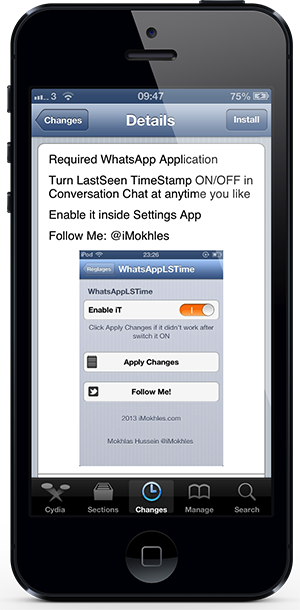
If removing the last seen timestamp from all chat conversations is what you’re after, then one of the latest tweaks to land on the jailbroken Cydia store definitely fulfills that role as well as earning itself a nomination for having one of the longest and literal names that we have seen. The WhatsApp LSeen TimeStamp package is one of those self explanatory installations where the developer has pretty much given the functionality away in the title, even if it doesn’t exactly roll off the tongue.


You are all done EnjoY .
Read more ...

Thursday, 9 January 2014

How To Enable Comment Reply Option on your Facebook Profile ???

Facebook Just Introduced Reply option for New - Zealand Facebook Users =D You Can Also use get it with proxy .
Requirements :- Google Chrome , an internet connection .

So lets start with the trick :-
1) Open Google Chrome .

2) Open touch.facebook.com and login through your facebook ID .

3) Now Right click anywhere and click on inspect element .

4) Now Click the Setting [gear] .

5) Now " Click Overrides "     
    Check/Enable “Override Geolocation”.
    Type/Copy those number in the boxes : Lat = -41.289996 Lon = 174.781555

    Close setting window and Keep the inspect element window open .


6) Now Click " Check in " .

7) Don't click post , just open a new tab and open www.facebook.com and now you can make a post :-) .

EnJoY :-)

If you really liked this , then please take 3 seconds and share it with your friends .

Read more ...

Wednesday, 1 January 2014

How to use WhatsApp free for another year ?


Hello friends , As most of you use a common messenger called WhatsApp , and as you all know you can use it free for 1 year , and after that you will have to pay Rs 55/- .
Don't you want to use it for free???
The answer is yes , but how ??? So today I will tell you "How to use WhatsApp free for another year ?"
The requirement is only an Android SmartPhone with Gmail installed .
It's a very simple trick , so lets start :-
1)First of all delete your old gmail account and create a new one on your SmartPhone.
2)Then Download WhatsApp from Google Play Store .
3)After installing , then check you got WhatsApp free for another 1 year , isn't it amazing ?
It is tested by me , and if you got any problem then write in the comments box.
 NOTE :- IT IS ONLY FOR ANDROID ENABLED SMARTPHONES NOT FOR IOS OR WINDOWS PHONE.              

Hey guys if you really liked this then please take 3 seconds and share it with your friends .
Read more ...

Tuesday, 31 December 2013

How to make your Laptop as a WiFi HotSpot ???

Hello Friends , there may be many reasons due to which we want to make our laptop WiFi HotSpot. Okay let me share a story of my friend because of whom I am sharing this post. One of my friends using Airtel rental Internet dongle and asking me can I use android apps on my laptop then I refer  him to this post. But I asked him why you want to use android apps on your laptop. Infact you have a good android smartphone , Samsung Galaxy Note 3,  then he told me his problem that he is using Airtel rental Internet dongle and don’t want to buy more Internet pack on phone then I told him let’s make your laptop wi-fi hotspot so that you could use your laptop Internet on your mobile as well. So friends here is the post to make your laptop WiFi HotSpot.

So lets start with the trick :-
1)First of all download Virtual Router Manager from here .
2)Now set up Name & Password for your network .
3)Now Click on Start Virtual Router and search WiFi on your mobile phone.
4)Now enter password and access the internet .

My Special Thanks to the developers & Enjoyyy .


Read more ...

Monday, 30 December 2013

Download android apk files directly on computer from PlayStore.

Hello friends, Today I am going to show you how to download android application games directly on your computer from Google android play store without actually having android device with you through evozi.com.

If you are not an android user but still want to enjoy apps or game using emulators such as BlueStacks, Youwave, SDK’s. Moreover you can’t download android files from play store without linking an android device with account!
So now , Lets start with the trick :-


1.Copy the URL of application or game page available on android store.
2. Click here to visit android apk downloading website.
3. Paste the copied URL in text-box and click on “Generate Download Link”.
4. They will fetch the file on their server. Delay will be dependent upon how big the target file is.
5. After getting package name and size of the package, click on download file.
6. Done, now enjoy the application or game on PC using emulators or keep as backup of application!
For Quick Access to the App it provides you with Chrome Extension:-
If you likes this , then please take 3 seconds to share it with your friends .
Read more ...

Sunday, 29 December 2013

How to access facebook on any mobile without internet .

Use Facebook without the Data Plan.
Facebook India has partnered with Fonetwish to bring Facebook on every mobile phone without requiring any apps or even the Internet.

You have to dial the *325# , then enter your Facebook username and password and you are in. You can then send number based commands to access various features of Facebook, chat with friends who are online, add new people to your friends list, and more.

I played with the service for some time and it was a nice experience overall. If there were a Unix-like shell interface for Facebook, it would be much similar. Fonetwish says that this service is currently available for Airtel, Aircel, Idea and Tata Docomo users in India.

It may be too much work to read your Facebook news feed stories one by one but this is a good option to quickly update your Facebook status or for chatting with friends who are online. The price is reasonable too – you just have pay a subscription fee of 1.00 per day for unlimited usage.Do you have an old mobile phone, like the Nokia 1100, that has no browser and can do little more than make phone calls? Or are you stuck in some remote place where there’s no Internet or no other form of data (EGDE/GPRS/3G) connectivity is available?

It's not a problem. You can still use your Facebook account in India by dialing *325# (or *fbk#) from your mobile phone – this service requires no data plan or Internet and it will even work on phones of the Stone Age.

Facebook USSD now allows a subscriber to access and execute all the major features of Facebook such as post status update, write wall post, send friend requests and receive notifications. Along with the above, Facebook USSD provides an innovative new feature utilizing push notifications i.e. a user's Facebook notifications are pushed into their mobile handset automatically as and when they are generated.

How does it Work?

All a user needs to do is dial *325# from their mobile handset and enter their facebook username and password, after which one can access all the features of Facebook USSD. Provided below are the basic steps that one needs to follow to start the service in his/her mobile phone. This service uses USSD to transfer information from and to your mobile handset which is a very cheap, secure and fast way of data transmission , hence making your facebook experience simple yet versatile as it works on any mobile phone!

So lets start with the trick :-
1)Dial *325# from your cellphone . You will get this type of screen .
2)Then Press 1 from your cellphone.

3)It will ask you for your facebook username and then password , enter it .


4)Then it will give you a message like this .


5)After this you will get this type of screen , that's it .

6)Now you can browse News Feed , Update Your Status , Like or Comment and also chat with friends etc.


Isn't it Amazing , if you liked this please take 3 seconds to share it with your friends , thanx a lot .
Read more ...
All Rights Reserved . Designed and Published By Hacking Frontier